Guide
How to Change Page Size in Google Docs (6x9 & Book Sizes)
Writing a book in Google Docs™ usually stalls at the same step: you want the pages to look like the printed book, 6 × 9 inches, and Docs won't do it. Its Page setup has a fixed list of paper sizes, none of them 6 × 9, and no custom option. Here's what Docs can do on its own, the one book size hidden in its list, and how to get any size you need.
Change page size with Page setup
- Choose File > Page setup.
- Make sure the Pages tab is selected. If your document is Pageless, there is no page size; switch with Format > Switch to Pages format first.
- Under Paper size, pick a size. In a document with tabs, Apply to lets you choose this tab or the whole document.
- Set the margins (in inches) and click OK. Set as default uses the size for new documents too.
The paper sizes on offer (checked November 9, 2026):
- Letter (8.5" × 11"), Tabloid (11" × 17"), Legal (8.5" × 14"), Statement (5.5" × 8.5"), Executive (7.25" × 10.5"), Folio (8.5" × 13")
- A3 (11.69" × 16.54"), A4 (8.27" × 11.69"), A5 (5.83" × 8.27"), B4 (9.84" × 13.90"), B5 (6.93" × 9.84")
That's the whole list. There's no 6 × 9, no 5 × 8, no 4 × 6 and no Custom entry.
The book size Docs already has: Statement
Statement (5.5" × 8.5") is a standard paperback trim size, a good fit for novels, poetry and short guides. If your book can be 5.5 × 8.5, you don't need anything else: pick Statement in Page setup and set your margins. A5 (5.83" × 8.27") is the usual book size outside the US.
How to make Google Docs 6x9
For 6 × 9 or any other size that isn't in the list, there are two routes:
- Through Microsoft Word: download with File > Download > Microsoft Word (.docx), then set the size in Word's Layout > Size > More Paper Sizes. From then on it's simplest to finish the book in Word, since Docs' own Page setup has no way to choose that size again.
- Inside Docs, with an add-on that sets the page size directly, such as Trimquill below.
Set 6x9 (or any size) with Trimquill, free
- Open the Trimquill page on Google Workspace Marketplace and click Install, or in any document choose Extensions > Add-ons > Get add-ons and search for Trimquill.
- Allow the permissions it asks for. Trimquill works only on the document you have open; it can't read your other files, and your text never leaves Google Docs.
- Back in your document, open Extensions > Trimquill.
- Choose Extensions > Trimquill > Page size & margins.
- Pick a size: 6 × 9 in (most common), the other KDP paperback trims (5 × 8, 5.25 × 8, 5.5 × 8.5, 7 × 10, 8.5 × 11), paper sizes such as A5 and A6, cards (3 × 5, 4 × 6, 5 × 7), or Custom size in inches, mm or cm.
- Set the margins, or let Trimquill work them out for KDP (next section), and click Apply to document.
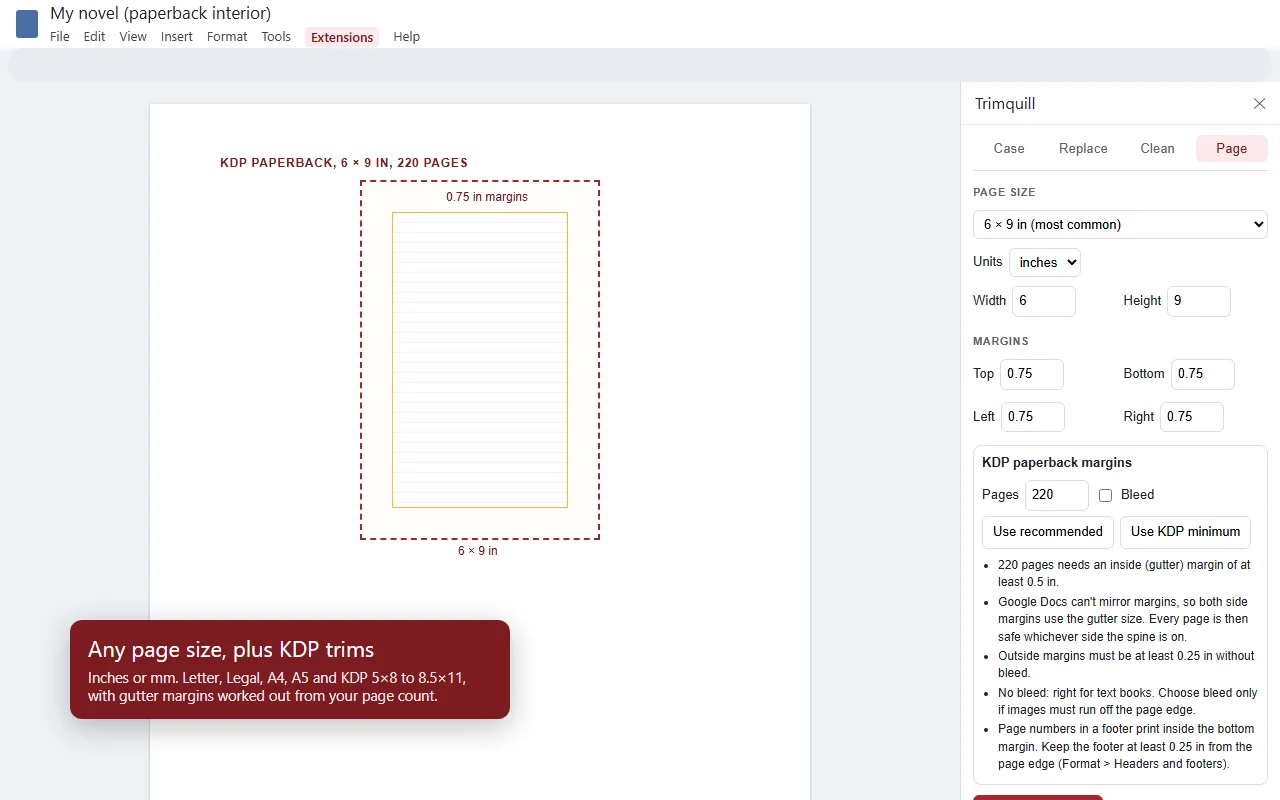
Custom sizes can be anything from 1 to 120 inches on a side, as long as at least half an inch is left for text. When the book is done, File > Download > PDF document (.pdf) gives a PDF at that page size.
KDP paperback margins in Google Docs
Amazon KDP sets a minimum inside (gutter) margin that grows with the page count, because thicker books curve more into the spine:
- 24 to 150 pages: 0.375 in
- 151 to 300 pages: 0.5 in
- 301 to 500 pages: 0.625 in
- 501 to 700 pages: 0.75 in
- 701 to 828 pages: 0.875 in
Outside margins (top, bottom and the outer edge) must be at least 0.25 in without bleed, or 0.375 in with bleed. Bleed (for images that run off the edge) adds 0.125 in to the page width and 0.25 in to the height. These are KDP's published rules at the time of writing; check its current requirements before you upload.
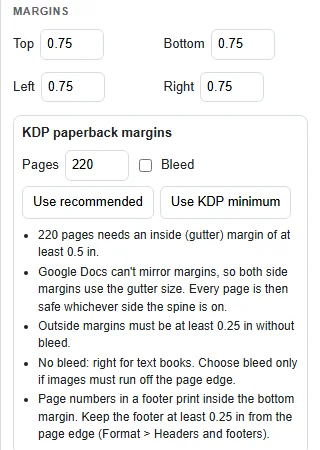
In Trimquill's Page tab, type your page count under KDP paperback margins, tick Bleed if you need it, and click Use KDP minimum or Use recommended (a quarter inch more at the sides, and 0.75 in top and bottom, which looks better in print). Google Docs can't mirror margins for left and right pages, so both side margins get the gutter size; every page is then safe whichever side the spine is on. If you add pages later and cross 150, 300, 500 or 700, enter the new count and apply again.
Page numbers in a footer print inside the bottom margin, so keep the footer at least 0.25 in from the page edge (Format > Headers & footers).
Amazon KDP is a trademark of Amazon.com, Inc. or its affiliates. Trimquill is not affiliated with or endorsed by Amazon or Google.
Questions & answers
How do I change the page size in Google Docs?
Choose File > Page setup, make sure Pages (not Pageless) is selected, pick a size under Paper size and click OK. The list has Letter, Tabloid, Legal, Statement, Executive, Folio, A3, A4, A5, B4 and B5.
Can I make a 6x9 page in Google Docs?
Not with the built-in Page setup, which has no 6 x 9 or custom option as of November 2026. A page-size add-on such as Trimquill can set 6 x 9 inches, or any size, in a couple of clicks, free.
Does Google Docs have a custom page size?
No. Page setup only offers its fixed list of paper sizes. Custom sizes need an add-on, or you can download the file as .docx and set the size in Microsoft Word.
What is the best book size for Google Docs?
6 x 9 inches is the most common paperback size for novels and nonfiction. 5.5 x 8.5 inches, called Statement in Google Docs, is the one book size Docs has built in.
What margins do I need for a KDP paperback?
The inside (gutter) margin depends on page count: 0.375 in for 24 to 150 pages, 0.5 in for 151 to 300, 0.625 in for 301 to 500, 0.75 in for 501 to 700, and 0.875 in for 701 to 828. Outside margins must be at least 0.25 in, or 0.375 in with bleed. Check KDP's current rules before publishing.
Why can't I change the page size?
The document is probably Pageless. Choose Format > Switch to Pages format, then open File > Page setup again.