Guide
How to Use Solver and Goal Seek in Google Sheets
Excel users reach for two what-if tools: Goal Seek ("what interest rate gives a $1,500 payment?") and Solver ("how many of each product should we make to earn the most?"). Google Sheets™ has neither built in. Here is how to get the same answers with Sheets' own functions where that's possible, how to set up a Solver model, and how to run both with an add-on.
Goal Seek without an add-on: work backward
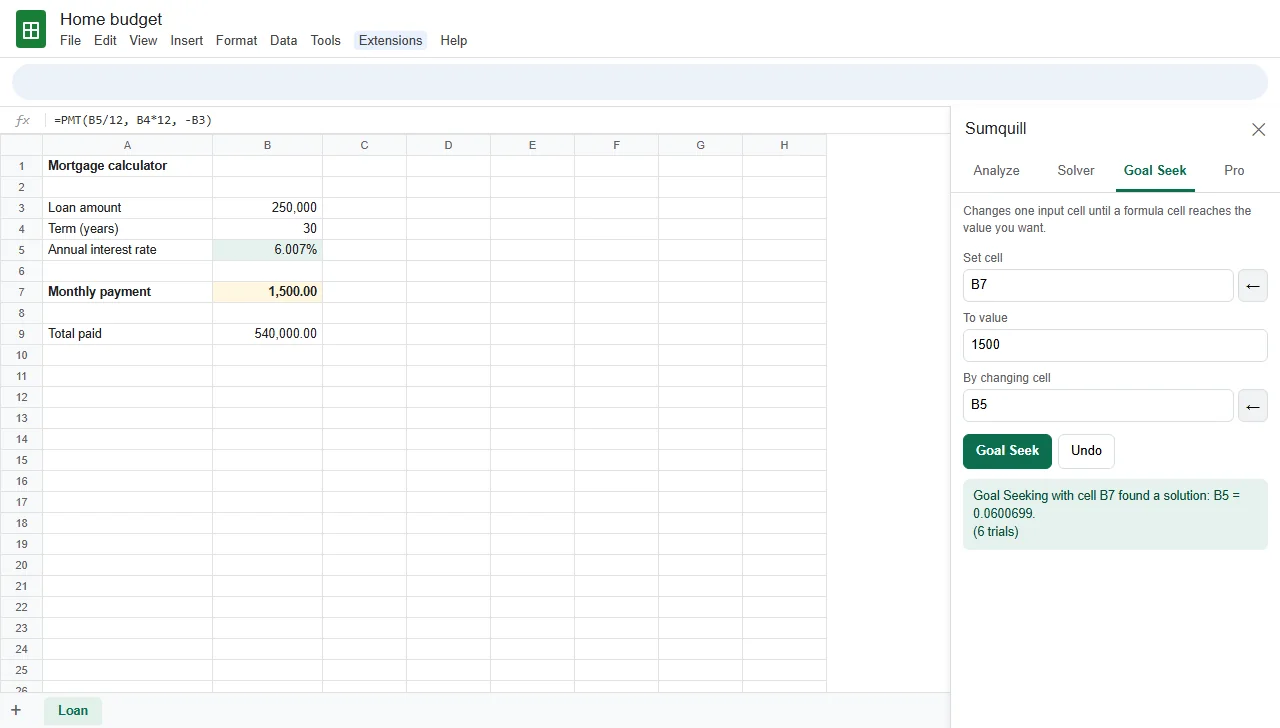
Goal Seek changes one input until a formula reaches a target. Often Sheets already has a function that solves for that input directly. Example: a $250,000 loan over 30 years, with the payment in B7 as =PMT(B5/12, B4*12, -B3). What annual rate makes the payment $1,500?
=RATE(360, -1500, 250000)*12 → 6.007%
The same trick works for the other loan inputs: NPER for the number of payments, PV for the loan amount, PMT for the payment. For a formula with no inverse, list trial values in a column, copy the formula beside them, and narrow in on the value where the result crosses your target. It works, but each round takes a minute.
Goal Seek with Sumquill (free)
- Open the Sumquill page on Google Workspace Marketplace and click Install, or in any spreadsheet choose Extensions > Add-ons > Get add-ons and search for Sumquill.
- Allow the permissions it asks for. Sumquill works only in the spreadsheet you open it in, and it sends no spreadsheet data anywhere.
- Back in your spreadsheet, open Extensions > Sumquill.
- Choose Extensions > Sumquill > Goal Seek.
- Set cell: the formula cell (B7). To value: 1500. By changing cell: the input (B5).
- Click Goal Seek. Sumquill tries values, usually finishing in under ten trials, and leaves the answer in B5. Undo puts the old value back.
Setting up a Solver model
Solver needs three things on the sheet, all as cells and formulas:
- Variable cells: the decisions, such as how many chairs, tables and desks to make (B4:D4).
- An objective cell: a formula to maximize or minimize, such as total profit
=SUMPRODUCT(B5:D5, B4:D4). - Constraints: limits on other formulas, such as labor hours used
=SUMPRODUCT(B8:D8, $B$4:$D$4)at most the 400 hours available, and whole-number quantities.
Without a Solver, a two-variable model can be solved by graphing the constraints and checking the corners, but with three or more variables, or whole numbers, you need an optimizer.
Solver with Sumquill
- Choose Extensions > Sumquill > Solver.
- Set objective: B12, with Max (or Min, or Value of a target).
- By changing variable cells: B4:D4.
- Subject to the constraints: add F8:F10 <= H8:H10 (resources used at most what's available) and B4:D4 int (whole numbers). Leave Make unconstrained variables non-negative ticked.
- Pick the Solving method: Simplex LP for linear models like this one, Nonlinear for small smooth models. Click Solve.
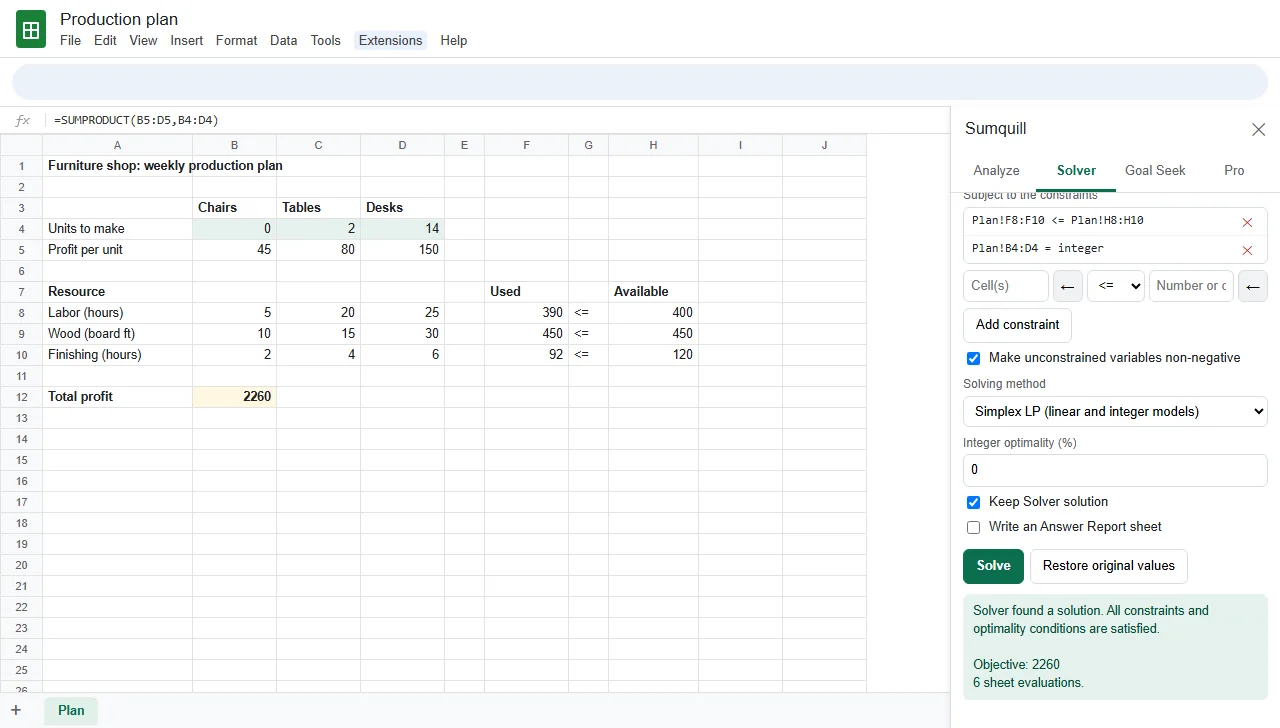
Solver reports whether every constraint is met, keeps the answer in the variable cells (or puts the originals back with Restore original values), and can write an Answer Report sheet. A linear model takes about one recalculation per variable cell, so it's quick. Google limits a single run to six minutes, and Sumquill stops at five and says so; nonlinear models need hundreds of recalculations, so keep them small. Solver is free for up to 10 variable cells; larger models need Sumquill Pro.
Doing statistics as well? See the Data Analysis ToolPak in Google Sheets.
Excel is a trademark of Microsoft Corporation and Google Sheets™ of Google LLC. Sumquill is an independent product, not affiliated with or endorsed by Microsoft or Google.
Questions & answers
Does Google Sheets have Solver?
No. As of November 2026 Google Sheets has no built-in Solver. You need an add-on: Sumquill's Solver handles linear, integer and small nonlinear models, free for up to 10 variable cells.
Does Google Sheets have Goal Seek?
Not built in. For finance questions, RATE, NPER, PV and PMT can often work the answer out backward. For any other formula, an add-on such as Sumquill adds Goal Seek, free.
What is the difference between Goal Seek and Solver?
Goal Seek changes one input cell until one formula reaches a target value. Solver changes several cells at once to make a formula as large or as small as possible, or hit a target, while obeying constraints such as limited hours or whole numbers.
Can Solver use whole numbers only?
Yes. In Sumquill add a constraint with int (integer) or bin (0 or 1) for the variable cells. The Simplex LP method uses branch and bound to find the best whole-number answer.
Why does Solver say the linearity conditions aren't satisfied?
Simplex LP needs the objective and constraints to change in a straight line with the variable cells. IF, MIN, MAX, ABS, ROUND or two variable cells multiplied together break that. Switch to the Nonlinear method for small models, or rewrite the model.
How do I undo Goal Seek or Solver?
Sumquill's Goal Seek has an Undo button, and Solver has Restore original values. Edit > Undo and File > Version history work too.