Guide
How to Change Icon Color in Google Slides (and Docs)
You found the right icon, but it's black and your slides are navy and orange. In Google Slides™ there's no fill color for pictures, and the built-in Recolor doesn't do what most people expect. How you change an icon's color depends on what kind of object it is, so start there.
First, what kind of icon is it?
Click the icon and look at the toolbar:
- Replace image and Format options appear: it's a picture (PNG, JPG or GIF). Most icons from the web or a download are pictures.
- Fill color (the paint bucket) appears: it's a shape from Insert > Shape.
- A blinking cursor and font controls appear: it's a symbol or emoji typed as text.
Shapes: Fill color
Select the shape and click Fill color in the toolbar. Pick a theme color, or Custom (the + button) and type a hex code like #1a4d8f to match a brand or school color exactly. Border color sets the outline. Shapes are the one kind of icon Slides recolors perfectly, but they're limited to arrows, stars, hearts, callouts and other basic outlines.
Symbols: Text color
Symbols inserted with Insert > Special characters are text. Select the symbol (drag across it) and use Text color, including Custom for an exact hex code. Most color emoji ignore Text color.
Picture icons: what Recolor can and can't do
- Select the picture and click Format options in the toolbar (or right-click > Format options).
- Open Recolor and pick from the dropdown. The presets are light and dark tints built from your theme's colors.
The limit: Recolor shifts a picture toward a tint and keeps the darkest parts dark. In our test on a solid black phone icon, every preset left the black parts black; only the white phone inside picked up a tint. Raising Adjustments > Brightness first didn't change that. Recolor is useful on gray or light-colored icons, and only in your theme's colors, never an exact hex code.
In Google Docs™ it's the same story: select the picture, open Image options, and the Recolor presets work the same way.
The workaround: insert the icon in the color you want
Because a picture's color is baked in, the reliable fix is a copy of the icon in the right color: many icon sites let you pick a color before you download a PNG. Then right-click the old icon and choose Replace image to swap in the new file at the same size and position. It works, but it's one download per icon per color, and you start over every time the color scheme changes.
Recolor icons in one click with Iconquill
Iconquill keeps track of each icon's original vector drawing, so it can re-draw any icon it inserted in a new color.
- Open the Iconquill page on Google Workspace Marketplace and click Install, or in any presentation or document choose Extensions > Add-ons > Get add-ons and search for Iconquill. One install covers both Slides and Docs.
- Allow the permissions it asks for. Iconquill works only in the file you open it in; it can't read your other files, and nothing from your slides or document is sent anywhere.
- Back in your file, choose Extensions > Iconquill > Insert icons. The icon search opens in a sidebar.
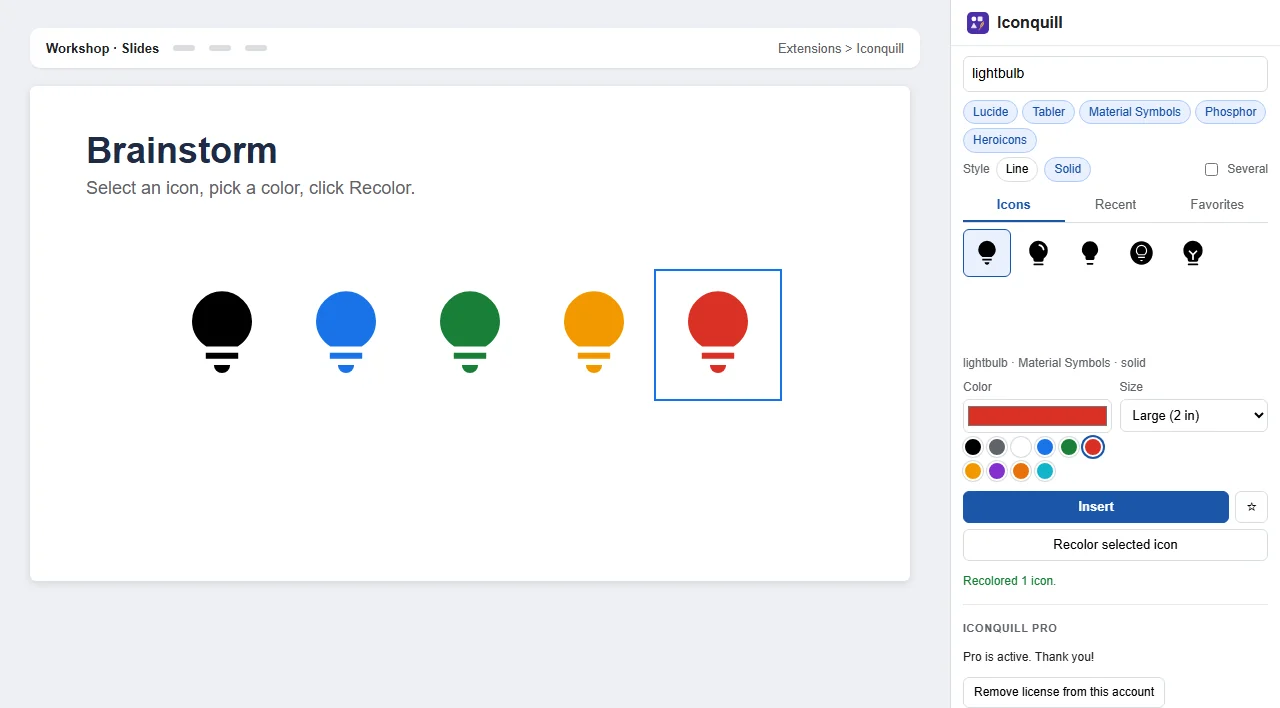
- Before inserting: pick one of the swatches or type any hex color in the Color box, and choose a size. The icon comes in sharp at that size.
- After inserting: select icons that Iconquill inserted, pick a color, and click Recolor selected icon. Each one is swapped in place, in Slides and in Docs.
Iconquill finds its icons by a short label it writes in each icon's alt text (for example iconquill:lucide/house/line), so keep that alt text if you want to recolor later; icons from elsewhere can't be recolored this way. Custom colors, sizes and Recolor are part of Iconquill Pro, a monthly or yearly upgrade bought inside the add-on. The free plan inserts unlimited black icons at 1 inch.
Still choosing icons? See how to add icons in Google Slides and how to add icons in Google Docs.
Iconquill’s icons come from five open-source libraries: Lucide (ISC license), Tabler Icons (MIT), Material Symbols (Apache 2.0), Phosphor (MIT) and Heroicons (MIT). Company logos are left out on purpose. Google Slides™ and Google Docs™ are trademarks of Google LLC; Iconquill is not affiliated with or endorsed by Google or the icon projects.
Questions & answers
Why can't I change the color of an icon in Google Slides?
Most icons in Slides are pictures (PNG or JPG images), not shapes. Slides can tint a picture with Format options > Recolor, but it has no fill color for pictures, and in our test every Recolor preset left a black icon black.
How do I recolor an image icon in Google Slides?
Select it and choose Format options > Recolor, then pick one of the preset tints based on your theme. It works best on gray or light icons. For an exact color, insert a copy of the icon in that color instead, or use an add-on such as Iconquill Pro that re-draws the icon in any color you pick.
How do I change the color of a shape or symbol?
Shapes from Insert > Shape change with Fill color and Border color in the toolbar. Special characters are text, so select them and use Text color. Both accept a custom hex color.
Can I change icon color in Google Docs?
The same limits apply. Docs has Image options > Recolor with preset tints for pictures, and Text color for symbols. Iconquill Pro recolors icons it inserted in both Docs and Slides.
Will recoloring with Iconquill blur or move my icon?
No. Iconquill re-draws the icon from its original vector file in the new color and swaps it in place. It recognizes its icons by the label it writes in each icon's alt text, so keep that alt text if you want to recolor later.