Guide
How to Add Icons in Google Docs (Phone, Email & More)
Icons turn a wall of text into something people can scan: a phone and an envelope beside your contact details on a resume, a flask beside each rule on a lab-safety worksheet, a check mark on a to-do list. Google Docs™ has no icon library, but there are four free ways to get icons into a document. Here's how each works, with the resume contact line as the example.
Does Google Docs have icons?
No. As of November 2026 the Insert menu has Image, Drawing, Symbols and more, but no Icons command. Insert > Image offers Upload from computer, Search the web, Drive, Photos, Camera and By URL; Insert > Symbols offers Emoji and Special characters.
Method 1: special characters (quick text icons)
- Click where the icon should go, then choose Insert > Symbols > Special characters.
- Type a keyword in the search box: telephone, envelope, check, star, arrow. Or draw the shape in the Draw a symbol here box.
- Click a symbol to insert it, then close the box.
A symbol is text: it sits on the line, takes your font size, and changes color with Text color. That makes it the tidiest option for a resume contact line. The catch: only what's in Unicode is available (no laptop or profile icons in most fonts), and the look changes with the font.
Method 2: emoji
Insert > Symbols > Emoji has phones, envelopes, pins and pointing hands. The catch: emoji are full color and look casual, Text color doesn't change most of them, and they can print differently from how they look on screen. Fine for a class newsletter, risky on a resume.
Method 3: insert icon images
Choose Insert > Image > Search the web and search for phone icon, or download PNG icons from an open-source icon library and use Upload from computer. Web results mix free icons with copyrighted art and company logos, so check where an image comes from before you use it.
To keep an image icon in line with your text, make it small (about 0.2 to 0.25 inch for 11-point text: click it and drag a corner, or use Image options > Size & rotation) and leave it In line with text. The catch: one download per icon, the styles rarely match, and the color is whatever the file had.
Method 4: draw it
Insert > Drawing > New opens a canvas with shapes, lines and arrows, and you can insert an image into a drawing to group it with a label. Good for a diagram; slow for a row of small icons.
The shortcut: icons at your cursor with Iconquill
Iconquill adds a searchable icon library to Google Docs and Google Slides: 12,000+ icons from Lucide, Tabler Icons, Material Symbols, Phosphor and Heroicons, all under licenses that allow school and commercial use.
- Open the Iconquill page on Google Workspace Marketplace and click Install, or in any presentation or document choose Extensions > Add-ons > Get add-ons and search for Iconquill. One install covers both Slides and Docs.
- Allow the permissions it asks for. Iconquill works only in the file you open it in; it can't read your other files, and nothing from your slides or document is sent anywhere.
- Back in your file, choose Extensions > Iconquill > Insert icons. The icon search opens in a sidebar.
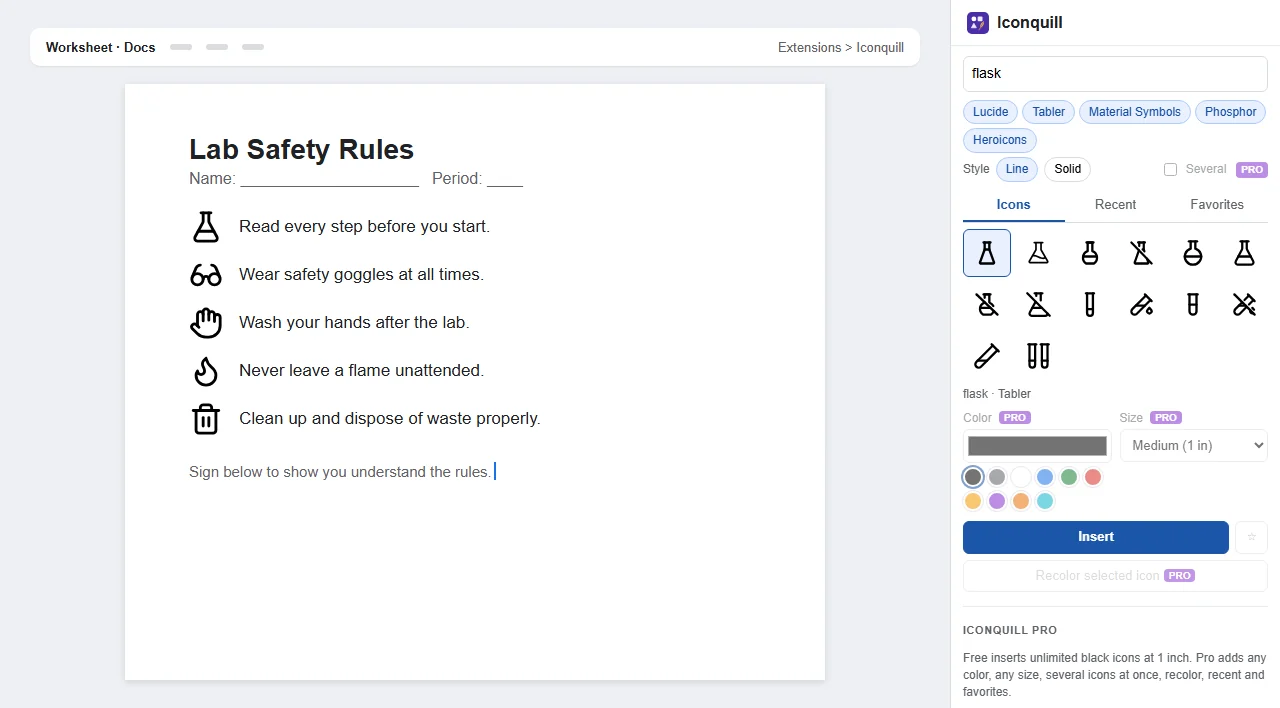
- Click inside a paragraph where the icon should go (not in a header, footer or drawing).
- Search for the icon (phone, mail, map pin, link, globe), click it, then Insert. If you have text selected instead of a cursor, the icon goes at the end of that paragraph.
Free icons are black and 1 inch, which is large next to body text: click the icon and drag a corner to shrink it, or use Image options > Size & rotation. With Iconquill Pro you pick the size and color before inserting, so a row of contact icons comes in matching.
A clean resume contact line
- Choose Insert > Table and make a 1-row table with one cell per contact item (phone, email, city, website).
- In each cell, insert a small icon, type a space, then the detail.
- Select the table, open Format > Table > Table properties and set the border to 0 pt so only the icons and text show.
Skip company logos (they're trademarks); a link or globe icon before your profile address says the same thing. Many applicant tracking systems read resumes as plain text and skip images, so keep the details themselves as typed text, never as part of a picture.
Making slides instead? See how to add icons in Google Slides. Need icons in a color other than black? See how to change icon color.
Iconquill’s icons come from five open-source libraries: Lucide (ISC license), Tabler Icons (MIT), Material Symbols (Apache 2.0), Phosphor (MIT) and Heroicons (MIT). Company logos are left out on purpose. Google Slides™ and Google Docs™ are trademarks of Google LLC; Iconquill is not affiliated with or endorsed by Google or the icon projects.
Questions & answers
Does Google Docs have icons?
No. Google Docs has no icon library as of November 2026. You can insert symbols and emoji (Insert > Symbols), pictures from the web or your computer (Insert > Image), drawings, or icons from an add-on such as Iconquill.
How do I add a phone or email icon to my resume in Google Docs?
For a quick text symbol, choose Insert > Symbols > Special characters and search telephone or envelope; it sits in the line like a letter and takes your text color. For real matching icons, install Iconquill, click where the icon should go and search phone, mail, map pin or link. It inserts the icon at your cursor.
Why won't my icon line up with the text in Google Docs?
Pictures in Docs are In line with text by default, so a tall icon makes the line taller. Shrink the icon to about the height of your text and keep it In line with text so it moves with the words. Putting the contact line in a borderless table keeps icons and text aligned.
Can I put company logos on my resume, like a LinkedIn icon?
Company logos are trademarks, and logo icon sets don't give you rights to the brand. A plain link or globe icon followed by the address does the same job. Iconquill leaves company logos out on purpose.
Is Iconquill free in Google Docs?
Yes. One install covers Google Docs and Google Slides. The free plan inserts unlimited black icons at 1 inch; Iconquill Pro, a monthly or yearly upgrade, adds any color and size, several icons at once, recolor, recents and favorites.