Guide
How to Add Icons in Google Slides (Free, 2026)
Icons make a slide readable at a glance: a lightbulb for an idea, a calendar for a deadline, a rocket for a launch. PowerPoint has an Icons button; Google Slides™ doesn't. As of November 2026 there is no icon library anywhere in Slides, so you either bring icons in yourself or use an add-on. Here are the four free ways, what each one can't do, and the shortcut.
Does Google Slides have icons?
No. Insert > Image offers Upload from computer, Stock & web, Drive & Photos, Camera and By URL. The Stock & web panel (also the Media button on the right edge) has filters for stock images, GIFs, stickers and Google images, but no icons. The old Explore button is gone from the Tools menu too. Everything below works around that gap.
Method 1: search the web from inside Slides
- Choose Insert > Image > Stock & web.
- Open the filter menu next to the search box and pick Google images.
- Search for the thing plus the word icon (for example phone icon) and click a result to insert it.
The catch: the results come from anywhere on the web. When we searched phone icon, the first rows included a company's logo and an image with a fake checkerboard "transparent" background baked into the picture. Styles don't match from one icon to the next, and the license is up to you: Slides' own insert box says to use only images you have confirmed you have the license to use.
Method 2: download icons and upload them
Open-source icon libraries publish thousands of matching icons under licenses that allow school and commercial use. Download the PNG version with a transparent background, then choose Insert > Image > Upload from computer, or drag the file onto the slide.
The catch: it's one download per icon, and a folder of files to keep track of. Pick the size and color before you download: once the icon is in Slides it is an ordinary picture, and its color is fixed (more on that below).
Method 3: special characters and emoji
Click inside a text box first (the menu item is greyed out until you do), then choose Insert > Special characters. Search by keyword, such as telephone, check or star, or draw the symbol in the box. Because a symbol is text, you can resize it with the font size and color it with Text color.
The catch: the choice is limited to what's in Unicode, the look depends on the font, and many emoji come out in full color that Text color can't change.
Method 4: build simple icons from shapes
Insert > Shape has arrows, stars, hearts, callouts and basic symbols. Shapes take any Fill color and Border color, so they always match your theme. For anything more detailed than a star or an arrow, this gets slow.
The shortcut: add icons with Iconquill
Iconquill is our add-on for icons in Google Slides and Google Docs. It searches 12,000+ icons from five open-source libraries (Lucide, Tabler Icons, Material Symbols, Phosphor and Heroicons) and inserts the one you click. No downloads, no sign-up, no license guesswork.
- Open the Iconquill page on Google Workspace Marketplace and click Install, or in any presentation or document choose Extensions > Add-ons > Get add-ons and search for Iconquill. One install covers both Slides and Docs.
- Allow the permissions it asks for. Iconquill works only in the file you open it in; it can't read your other files, and nothing from your slides or document is sent anywhere.
- Back in your file, choose Extensions > Iconquill > Insert icons. The icon search opens in a sidebar.
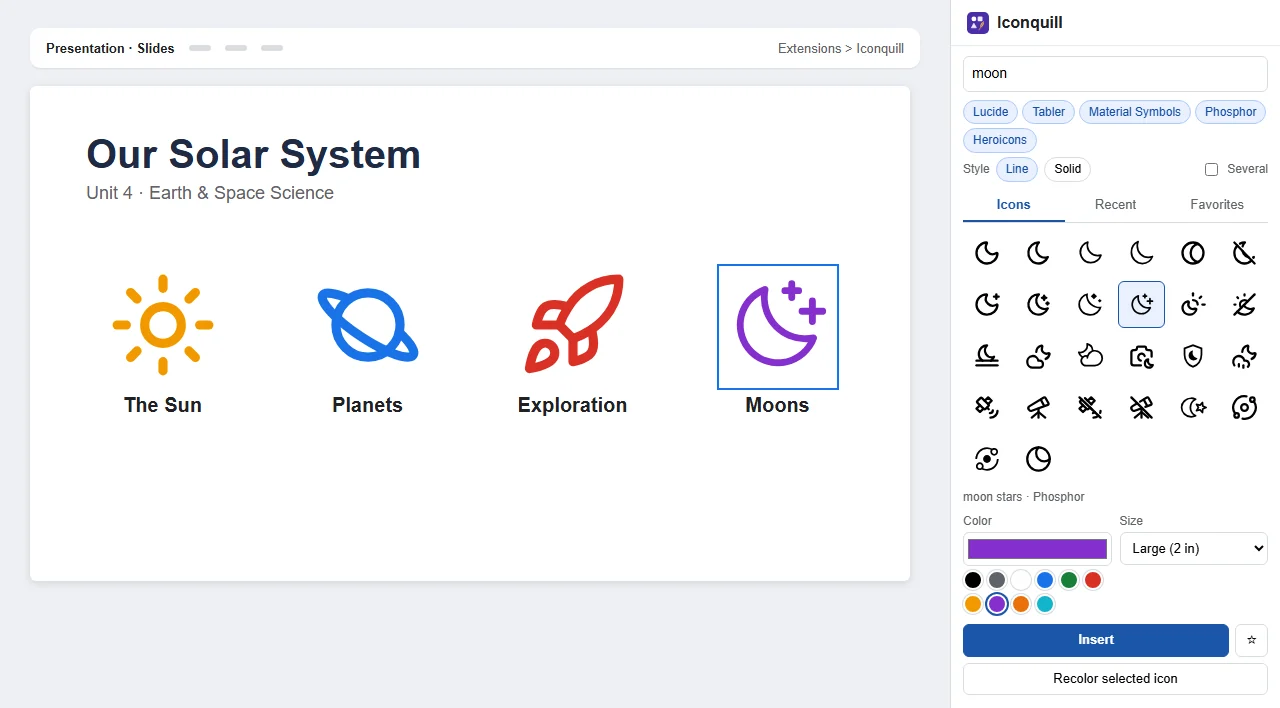
- Type what you need: calendar, science, growth, team. Narrow it to one library with the chips under the search box, or pick Line or Solid style.
- Click an icon, then Insert. In Slides it lands centered on the current slide; drag it where you want it.
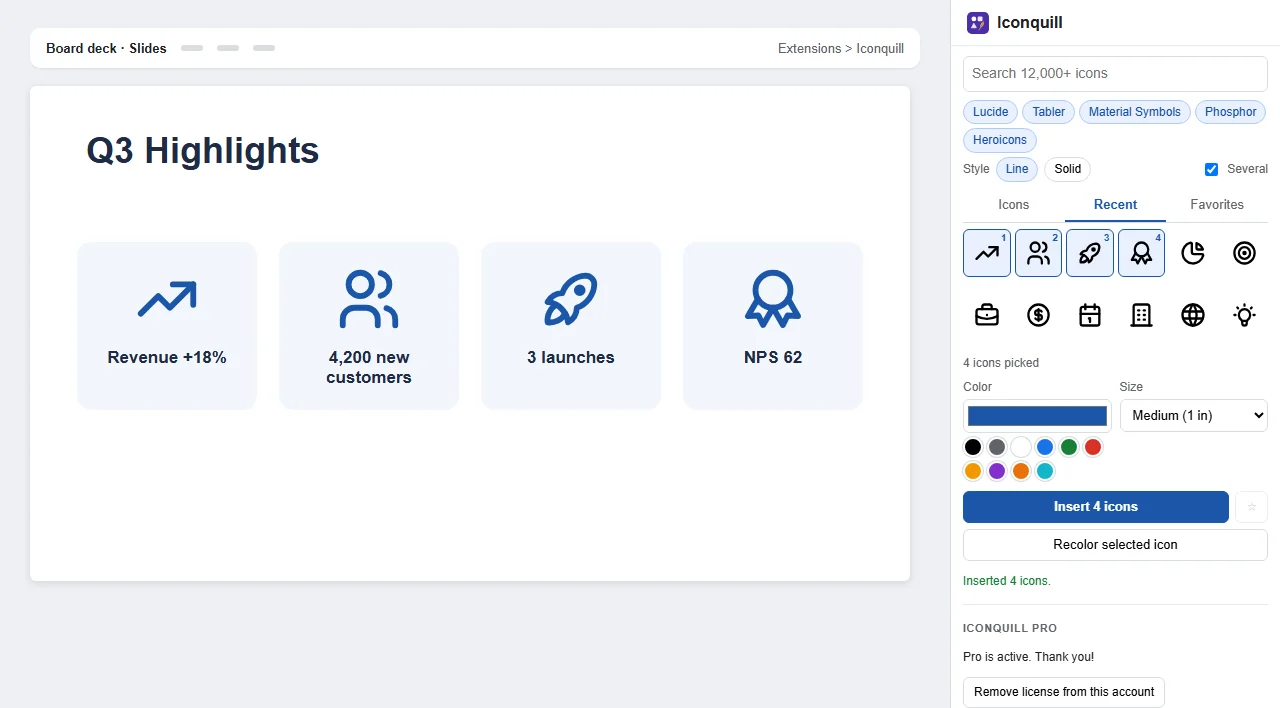
The free plan inserts unlimited black icons at 1 inch, from all five libraries, in both styles. Iconquill Pro, a monthly or yearly upgrade bought inside the add-on, adds any color and any size, inserting several icons at once in a neat grid, recoloring icons you already placed, and recent and favorite icons.
Tips for icons that look good on slides
- Stick to one library and one style per deck. Mixing line and solid icons, or two libraries, is what makes a slide look patched together.
- Size them the same. Select several icons and use Format options > Size & rotation to give them the same width and height, then Arrange > Distribute > Horizontally to space them evenly.
- Use one accent color. Black or dark gray reads well on light themes; one brand color for all icons looks deliberate.
- Add alt text if the icon carries meaning (right-click > Alt text). Iconquill fills in the icon's name for you.
Need a different color? See how to change icon color in Google Slides. Working in a document instead? See how to add icons in Google Docs.
Iconquill’s icons come from five open-source libraries: Lucide (ISC license), Tabler Icons (MIT), Material Symbols (Apache 2.0), Phosphor (MIT) and Heroicons (MIT). Company logos are left out on purpose. Google Slides™ and Google Docs™ are trademarks of Google LLC; Iconquill is not affiliated with or endorsed by Google or the icon projects.
Questions & answers
Does Google Slides have icons?
No. As of November 2026 Google Slides has no icon library like PowerPoint's Insert > Icons. Its Insert > Image > Stock & web panel offers stock photos, GIFs, stickers and a Google image search, but no icon category. To get real icons you use web images, symbols, shapes or an add-on.
Where do I find free icons for Google Slides?
Search the Google images filter in Insert > Image > Stock & web, download PNG icons from an open-source icon library, or install a free add-on such as Iconquill, which searches 12,000+ open-licensed icons from a sidebar and inserts them with one click.
Can I use icons from Google image search in my slides?
Only if the image's license allows it. Slides itself reminds you to use only images you have confirmed you have the license to use. Web results mix free icons with copyrighted art and company logos, so check the source page first. Icons from an open-source library under ISC, MIT or Apache 2.0 are safe for school and commercial decks.
How do I make an icon a different color in Google Slides?
Built-in Recolor only offers preset tints, and on a black icon they leave the black parts black. Shapes and special characters change color with Fill color or Text color. For icons in any color, Iconquill Pro inserts and recolors icons in any shade. See our guide to changing icon color in Google Slides.
Is Iconquill free?
Yes. The free plan inserts unlimited black icons at 1 inch in Slides and Docs, with no sign-up and no watermark. Iconquill Pro, a monthly or yearly upgrade bought inside the add-on, adds any color, any size, inserting several icons at once, recolor, recents and favorites.