Guide
How to Convert Footnotes to Endnotes in Google Docs
There is no button in Google Docs™ that converts footnotes to endnotes. Docs has footnotes only, and a volunteer expert on Google's own help forum gives the same answer: it can't be done with the built-in tools. You can still get there two ways: convert inside Docs with an add-on, or send the document through Microsoft Word. This guide covers both, plus what to check before you convert a long paper or a manuscript.
Before you convert
- Save a named version. Choose File > Version history > Name current version and call it something like Before endnotes. You can always come back to it.
- Finish your citations first. If a citation manager inserted your footnotes, add every citation before converting. After the conversion the notes are ordinary text, so a citation tool can no longer update them.
- Decide on the layout: one Notes section at the end, or a Notes section at the end of each chapter (numbers restart at 1).
- Decide on the markers: superscript numbers, which most styles use, or bracketed numbers like [1].
Convert footnotes to endnotes with Tailquill
- Open the Tailquill page on Google Workspace Marketplace and click Install, or in any document choose Extensions > Add-ons > Get add-ons and search for Tailquill.
- Allow the permissions it asks for. Tailquill works only on the document you have open; it can't read your other files and never asks you to share the document.
- Back in your document, open Extensions > Tailquill.
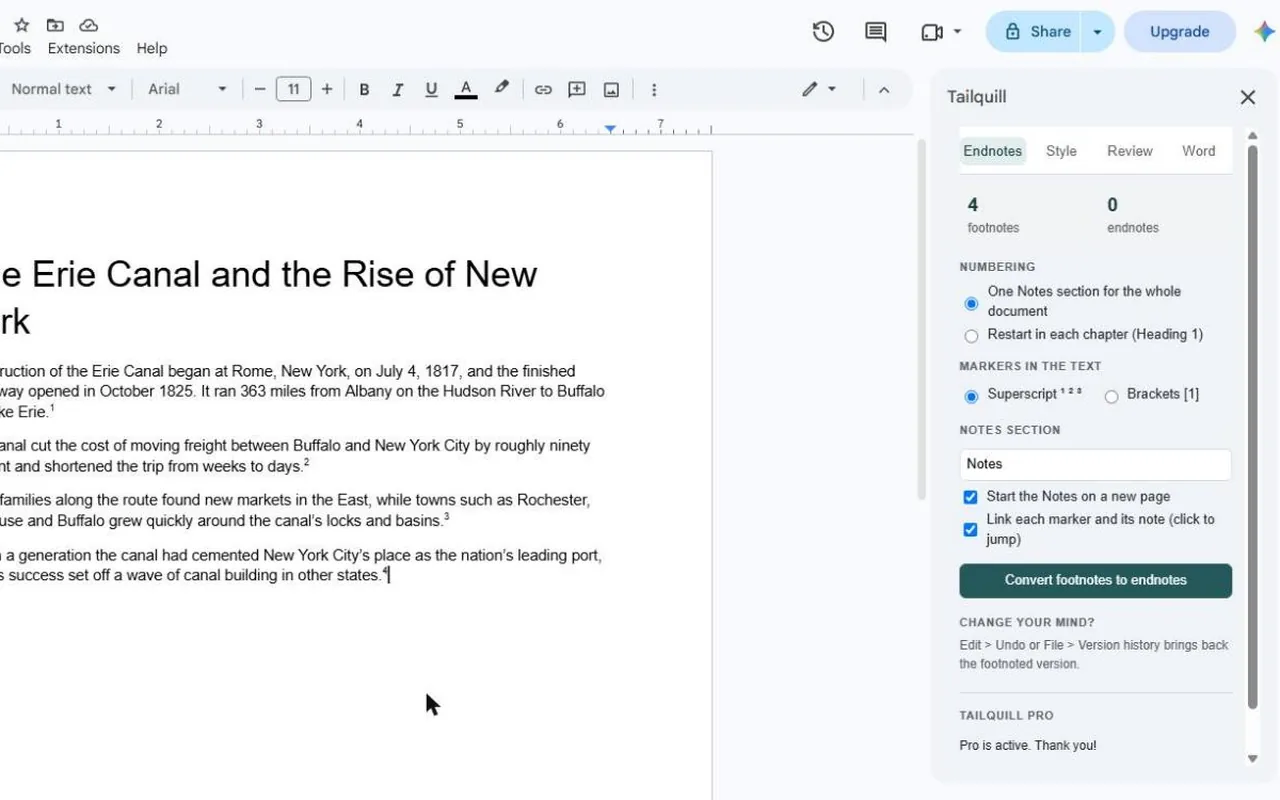
- Choose Open Tailquill to see the options: one Notes section or one per chapter, superscript or [1] markers, the Notes heading text, starting the Notes on a new page, and linking each marker to its note.
- Click Convert footnotes to endnotes.
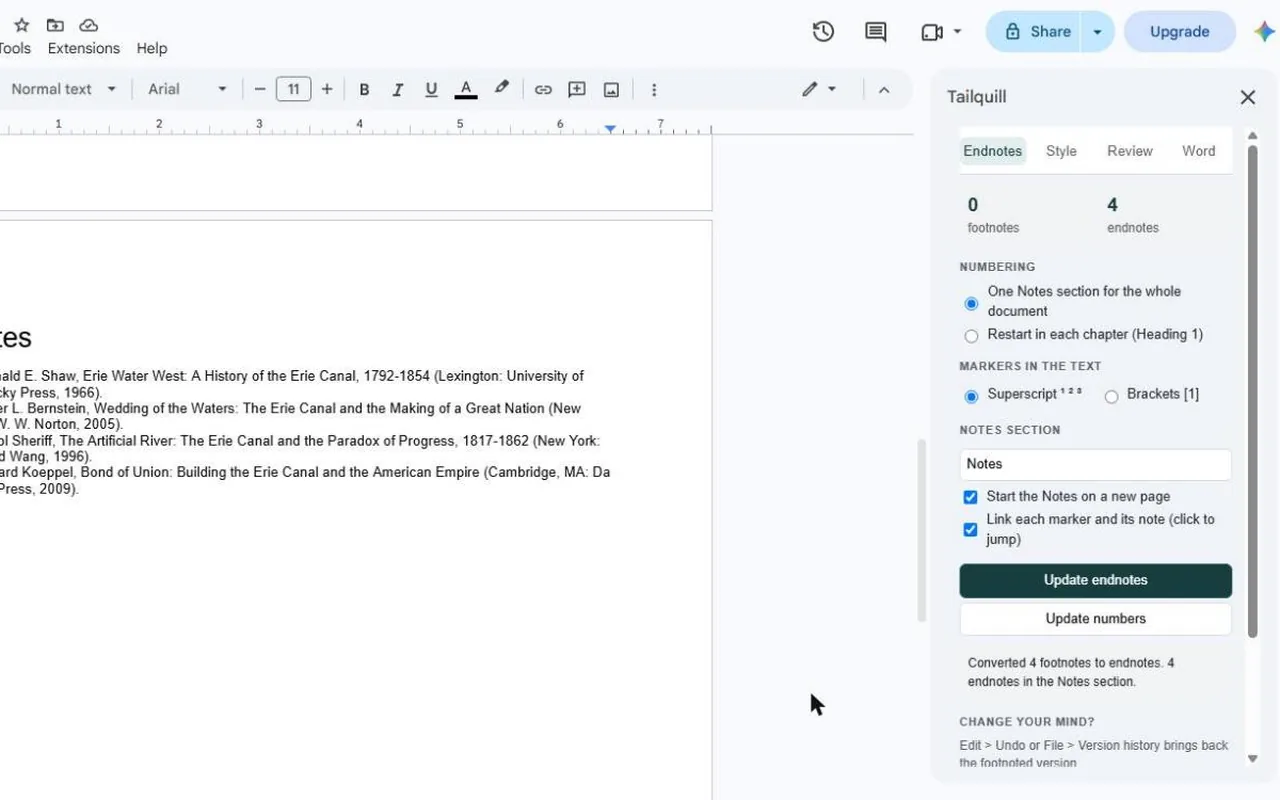
Tailquill moves each footnote's text into the Notes section, puts a numbered marker where the footnote was, and links the two so a click jumps either way. Italics, bold and links inside a note come across. On a very long manuscript, if Google stops the run partway, nothing is lost: run Convert again and it finishes the job.
Added more footnotes after converting?
Keep writing new notes as ordinary footnotes (Insert > Footnote). When you're done, run Convert footnotes to endnotes again. The new notes go into the Notes section in reading order and every number after them moves up. If you only moved text around, Update endnote numbers renumbers the markers and the notes to match.
Restart endnote numbers in each chapter
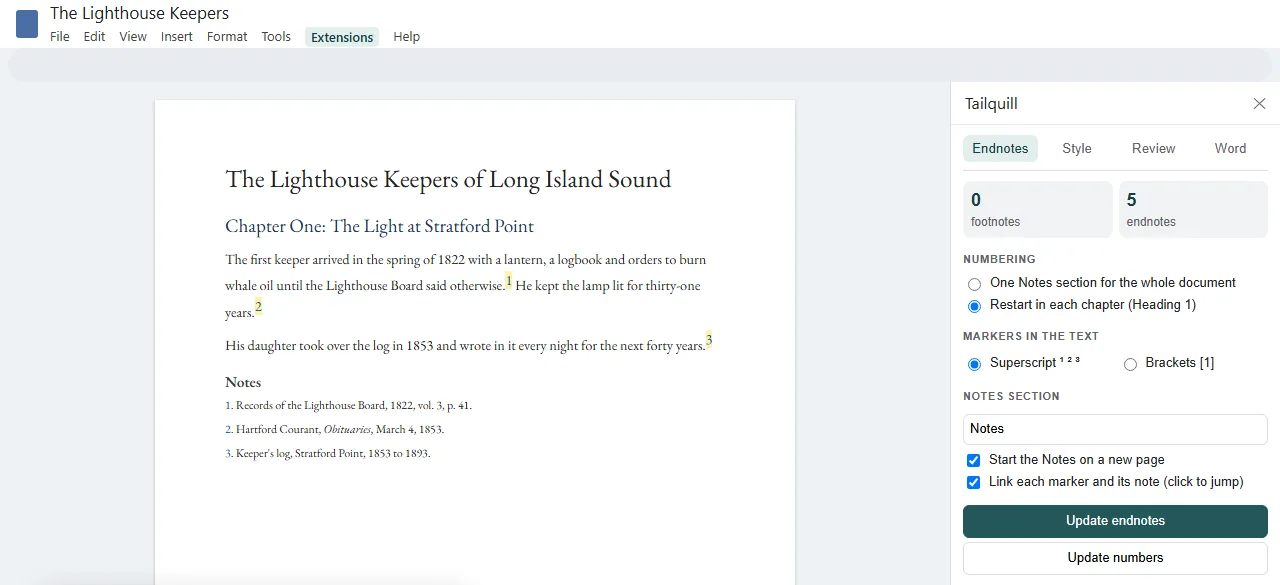
Books and theses often number notes from 1 in each chapter. Choose Restart in each chapter (Heading 1) before converting and Tailquill builds a Notes section at the end of each chapter. Make sure every chapter title uses the Heading 1 style; that's how the chapters are found. This option is part of Tailquill Pro ($9.99 once).
Convert in Microsoft Word instead
- In Docs choose File > Download > Microsoft Word (.docx).
- In Word, on the References tab, click the small arrow in the corner of the Footnotes group.
- Click Convert, choose Convert all footnotes to endnotes, and click OK.
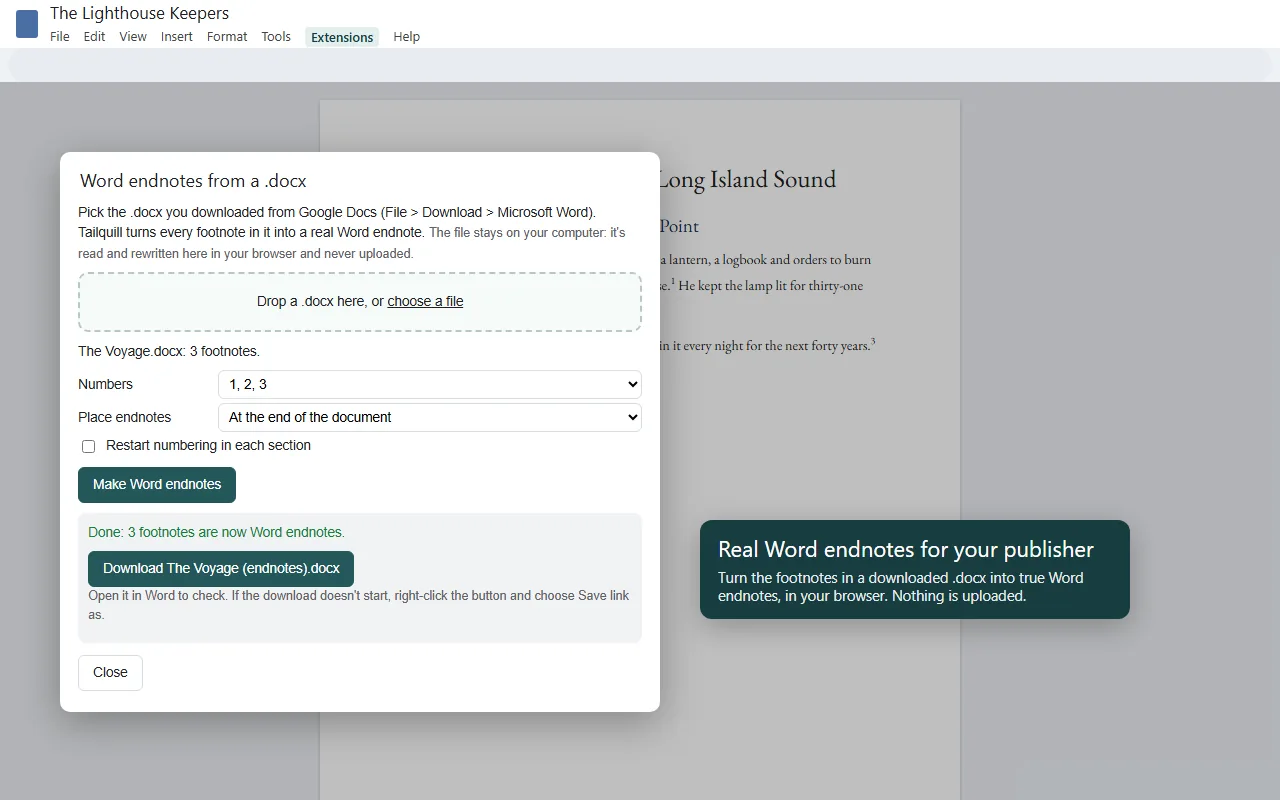
This gives you real Word endnotes, but the document then has to stay in Word: Google Docs has no endnotes, so they don't survive being opened in Docs again. If your publisher needs a .docx with true Word endnotes and you want to keep writing in Docs, Tailquill Pro's Word endnotes from a .docx tool converts the footnotes in a downloaded file right in your browser, without uploading it anywhere.
Changed your mind?
Straight after converting, Edit > Undo (Ctrl+Z) brings the footnotes back. Later on, open File > Version history and restore the version you named before converting. Make a copy first (File > Make a copy) if you want to keep both.
For the other ways to get endnotes, including typing them by hand and Chicago-style formatting, see how to add endnotes in Google Docs. To make the footnotes you keep match your body text, see how to change footnote font size in Google Docs.
Questions & answers
Can Google Docs convert footnotes to endnotes by itself?
No. Google Docs has no convert command and no endnotes. You need an add-on such as Tailquill, or you download the document as a .docx and convert the notes in Microsoft Word.
Can I convert all footnotes at once?
Yes. Tailquill converts every footnote in the document in one run. The free version handles up to 25 notes per document; Tailquill Pro ($9.99 once) has no limit.
What happens if I add footnotes after converting?
Write them as ordinary footnotes and run Convert again. Tailquill adds them to the Notes section in the right place and renumbers every note in order.
Can endnote numbers restart in each chapter?
Yes, with Tailquill Pro. Each chapter that starts with a Heading 1 gets its own Notes section, numbered from 1.
Do I have to share my document for the add-on to work?
No. Tailquill works on the document you have open, under your own account, and never needs it shared or set to anyone with the link can edit.
How do I undo the conversion?
Use Edit > Undo straight away, or File > Version history to go back to the version from before you converted. Naming a version first makes it easy to find.
Will the endnotes still be there in a PDF or Word download?
Yes. Tailquill's endnotes are ordinary text in your document, so they print, save as PDF and download as they look. Word sees them as text, not as Word endnotes; Tailquill Pro's .docx tool makes true Word endnotes when a publisher needs them.