Guide
How to Add Endnotes in Google Docs (2026)
Google Docs™ can make footnotes, but it has no endnotes. There is no Insert > Endnote command, and as of November 2026 there is no setting that moves footnotes to the end of the document. If your teacher, your style guide or your publisher wants endnotes, you have three choices: type them by hand, finish the document in Microsoft Word, or convert your footnotes inside Docs with an add-on. Here is how each one works, and when it makes sense.
Does Google Docs have endnotes?
No. Docs has only footnotes (Insert > Footnote, or Ctrl+Alt+F; Cmd+Option+F on a Mac). Each footnote sits at the bottom of the page it belongs to. If you switch the document to pageless (File > Page setup > Pageless), Docs shows the footnotes at the end of the document on screen, but that is only a way of viewing it: you lose page breaks, headers and page numbers, and a downloaded Word file still has ordinary footnotes. For real endnotes, use one of the methods below.
Method 1: type endnotes by hand (short papers)
For a paper with five or six notes, typing them yourself is fine.
- Click just after the sentence (and after its punctuation), type the note number, select it, and choose Format > Text > Superscript (Ctrl+. or Cmd+.).
- At the end of the document choose Insert > Break > Page break, type Notes, and set it as a heading from the style box (Heading 1 or Heading 2).
- Type the notes underneath in the same order: 1., then the note, one paragraph each.
- To make a number jump to its note, select the note text, choose Insert > Bookmark, then select the superscript number in the text, press Ctrl+K (Cmd+K) and pick the bookmark under Headings and bookmarks.
The catch: nothing is automatic. Add a note in the middle and you renumber every note after it, in the text and in the list, by hand. Past a handful of notes, it's easy to get one out of step.
Method 2: write footnotes, convert them in Microsoft Word
If you have Word, it can convert every footnote at once.
- In Google Docs choose File > Download > Microsoft Word (.docx).
- Open the file in Word, go to the References tab and click the small arrow in the corner of the Footnotes group.
- Click Convert, choose Convert all footnotes to endnotes, then OK.
The catch: from now on the document has to live in Word. Google Docs has no endnotes, so if you upload the file back to Docs to keep editing or to share it with a group, the endnotes don't stay endnotes.
Method 3: write footnotes, convert them in Google Docs with Tailquill
Tailquill is our add-on for footnotes and endnotes in Google Docs. You keep writing the way Docs wants you to, with ordinary footnotes, and convert when you are ready.
- Open the Tailquill page on Google Workspace Marketplace and click Install, or in any document choose Extensions > Add-ons > Get add-ons and search for Tailquill.
- Allow the permissions it asks for. Tailquill works only on the document you have open; it can't read your other files and never asks you to share the document.
- Back in your document, open Extensions > Tailquill.
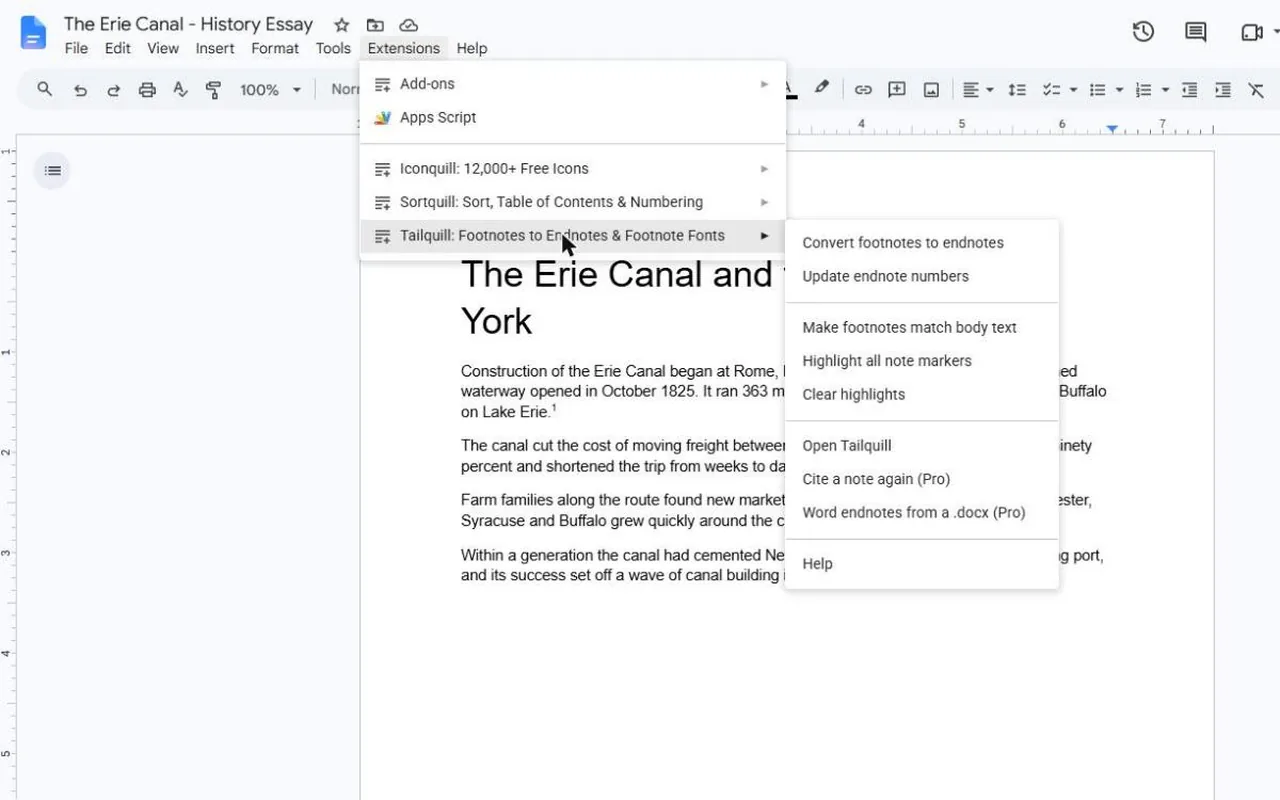
Then choose Convert footnotes to endnotes, or Open Tailquill to pick the options first:
- Markers: superscript numbers (¹ ² ³) or bracketed numbers like [1].
- Notes heading: Notes by default; type Endnotes or anything else you need.
- Start the Notes on a new page, and link each marker and its note so a click jumps between them.
- One Notes section for the whole document, or one per chapter (numbers restart at each Heading 1; Tailquill Pro).
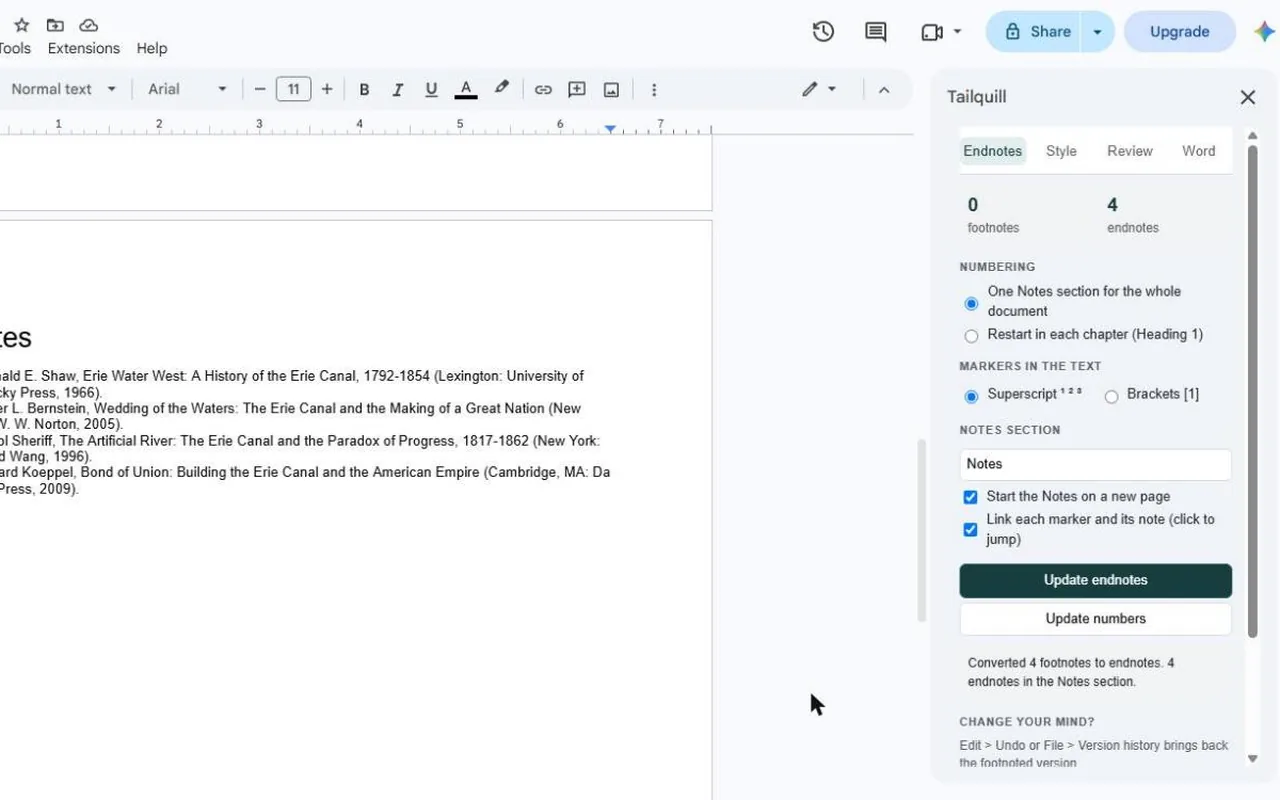
Each footnote's text moves into the Notes section, a numbered marker takes its place, and the two are linked both ways. Italics, bold and links in a note are kept. If you add footnotes later, write them as ordinary footnotes and run Convert again: the new notes slot in and every number updates in order. Moved a paragraph? Update endnote numbers puts the numbers back in reading order.
Chicago-style endnotes in Google Docs
Chicago (and Turabian, its student version) allows either footnotes or endnotes. If you use endnotes:
- The note number in the text is superscript and goes after the punctuation: ...in 1825.¹ (but before a dash).
- The notes go at the end under the heading Notes, before the bibliography, starting on a new page.
- In the Notes list the numbers are full size, followed by a period: 1. Ronald E. Shaw, ... Tailquill writes them this way.
- In a book or a long thesis, notes usually restart at 1 in each chapter, with the chapter's title or number above its group of notes. That's Tailquill's per-chapter option.
- The first time you cite a source the note is full; after that a short note (author, short title, page) is enough.
Always check your instructor's or publisher's instructions; they win over any general guide.
Footnotes or endnotes: which should you use?
Footnotes are easier for a reader who wants to check a source without flipping pages, and they are what Google Docs does natively. Endnotes keep the page clean, which is why many publishers, history departments and long manuscripts ask for them. A good habit either way: draft with footnotes, because Docs numbers them for you, and convert at the end only if endnotes are required.
Footnotes coming out in a different font from your text? See how to change footnote font size in Google Docs. Converting a long document? Read how to convert footnotes to endnotes in Google Docs first.
Questions & answers
Does Google Docs have endnotes?
No. As of November 2026 Google Docs only has Insert > Footnote. There is no endnote command, so endnotes are either typed by hand, made in Microsoft Word, or converted from footnotes with an add-on.
What is the shortcut for a footnote in Google Docs?
Ctrl+Alt+F on Windows and ChromeOS, or Cmd+Option+F on a Mac. Write your notes as footnotes first; it is the easiest way to keep them in order before you turn them into endnotes.
How do I make Chicago-style endnotes in Google Docs?
Write each note as a footnote, then convert them so they appear under a Notes heading at the end, before the bibliography. In the text the numbers are superscript; in the Notes list they are full-size numbers followed by a period.
Can I add more notes after converting?
With Tailquill, yes. Add new notes as ordinary footnotes and run Convert again. The new notes slot into the Notes section and every number updates in order.
Can I turn the endnotes back into footnotes?
Right after converting, Edit > Undo reverses it. Later, File > Version history brings back the version from before the conversion. Name a version before you convert so it is easy to find.
Is Tailquill free?
Converting up to 25 notes per document is free, as are matching footnotes to your body text and reviewing notes. Tailquill Pro is $9.99 once, with no subscription, for any number of notes, numbering that restarts in each chapter, citing a note twice and real Word endnotes.